Tuesday, December 21, 2010

Hyperlink to a new email off Birt Report

I made a series of contact list reports off the Human Resources module for use as a phone/email directory and I wanted to make the email addresses hyperlinked so that the default email application would start an email when the address was clicked off the report.


Make a text field in the email column of your table. Set type to html.
I tried to punch the code into the body of my post, but the browser is reading it as html and not showing all the code, so check out the image for the code.

Monday, December 20, 2010

Creating Birt Sub-Reports Using Dataset Parameter Binding

I'm going to write about a feature that I only recently discovered and wished I knew about a long time ago. The concept is how to do sub-reporting and neatly tie the master value with sub-reports using something called dataset parameter binding.

For example, let's say I have a master record like a service contract, and I want to report all the associated invoices associated to the service contract.

I have a primary dataset of service contracts, and a secondary dataset of invoices.

Make a table for service contract. Inside the detail row of the service contract table, place another table for invoice data.

Create a dataset parameter in the invoice dataset. It is not tied to a report parameter, so you are forced to choose a default value. Go ahead and do this even though it seems weird.

Then go to your invoice table. Select binding and click on dataset parameter binding. Edit the existing binding by identifying the corresponding dataset row from the contract table. This ties the outer table to the inner table.

Once you get this simple example you can expand the concept. I made a dashboard for shop supervisors a combination of 5 charts and tables all using dataset parameter binding that works great in the Aim Workdesk.

Tuesday, October 26, 2010

Alternative Row Highlighting in Birt

To improve readability of a list report, alternative row highlighting can be applied to the detail row of a table. Select the entire row, and then click on the Highlighting Tab in the Property Editor. Click Add and then paste the following text

row.__rownum %2


into the "if the following condition is true field". Set the next field to equal to and then put a 0 into the last field. Then down at the bottom, select "background color" and pick out a LIGHT grey color. You'll be presented with basic colors, but I like to pick a custom lighter grey because it prints better.


Tuesday, August 10, 2010

Nice looking Percents on Mouse-Over Chart Interactivity in Birt

If you're incorporating a mouse-over interactive feature in a Birt Chart and your data point is a percent, the resulting data flash can look sort of ugly (like 0.021200). You can control this by editing the format of the tooltip text.

a = row["PERCENT_CLOSED"]
a = a.toPrecision(2)*100
a = a+'%'

This should result in the percentage being displayed at as 21% as opposed to 0.021200. Occasionally I get some strange results like 21.0000004% that I can't really explain.

Saturday, August 7, 2010

Interactive Birt Chart Output Formats - Which one do you use?

If you're thinking about making some cool charts for your Birt reports, one of the first decisions you'll have to make is which output format to use. The choices are PNG, JPG, BMP, SVG. If the report doesn't need to feature any interactive features, you could pick JPG or BMP. To take advantage of the interactive features of Birt, you'll need to choose between PNG or SVG. And that's where things get a little more complicated, because different browsers render the interactive features of PNG and SVG differently. Also, some interactive features work differently in SVG than PNG.

First, read up on PNG and SVG on Wikipedia to get a little background. One of the things you'll find out is that SVG is not supported by IE 8 and only marginally by IE 9. However, I've noticed that some Birt interactive chart features don't work even in browsers that 'support' SVG. There is an adobe plug-in for IE that allows it to support SVG, but I'd like to avoid plug-ins if possible. Read more about browser support for SVG here, where some saint is documenting the results of performing 280 different tests on every known web browser.

For the reasons described above, I started using PNG. There were a couple cool interactive features that were supported by PNG, but it seemed like the best fit.

So here are the features I like best. I like to show tooltips on Mouse Over. This will allow some additional data to show up in a little window when the user hovers the mouse pointer over a data point. I find this useful because it's always a challenge to fit everything on the chart and this is a way to make the chart as big as possible while still allowing the user to get some more contextual information. As an example, let's say the y-axis is ae_s_bld_c.bldg, which is a building number or address. Because not all your users can quickly perform the mental translation from building number/address to building description, you could flash the more commonly known building description as a tool tip.

Another application for the tooltips would be when a chart has been made that normalizes the data based on percentage and you could use the tool tip to show the actual count of work orders, for example. You could also stitch a couple of these together into the same tool tip.

The other feature that I really like is hyperlink. You can drill-through from the chart report to another chart report or text report or right into a browse or individual record in the Aim application. You can see another article that I've written on that topic here.

I'll get some pictures up when I get a chance, plus some examples of the tooltips and hyperlinks code.


Friday, July 9, 2010

Display Report Elements Based on Parameter Selection


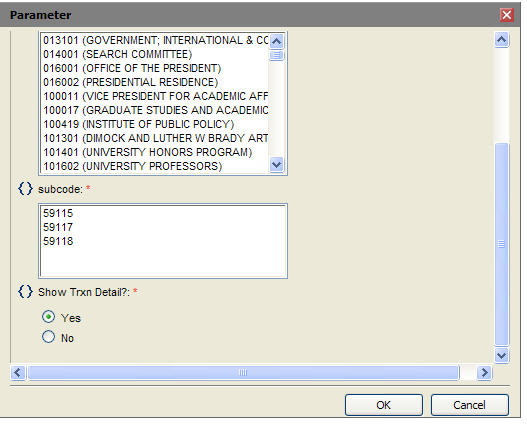
Extending the capabilities described in my last post, you can also allow the user to decide whether to display report elements at run time. Create a parameter with static values of Y and N (with display values of Yes and No). Then in visibility select hide element for html and then use the expression builder to reference the parameter. If your parameter is something like 'Show Transaction Detail?' then the following expression will hide it when N is selected.

BirtComp.equalTo(params["show_detail"].value,'N')
In this case, I named my parameter show_detail.

Thursday, July 8, 2010

Displaying Report Elements Based On Output Format


It's been my experience that BIRT reports can either look good in HTML or in PDF, but not both. Instead of trying to find the happy medium that makes both formats look passable, I've using the hide element feature to conceal the output for different formats. The two main offenders that look good in HTML but lousy in PDF are charts and cross tabs. With charts, I'm always tryign to squeeze as much data into the size of the screen so I make the chart as big as possible. However, when exported to pdf, you are limited by the paper size. Paper is in most cases smaller than a monitor. Cross tabs can be problematic because the size can be variable depending on parameter entry.

Also, there are cases where a report is comprised solely of a chart element that does some sort of summary of data, but users still want to get the underlying detail made available to them in an excel format. Savvy users will start doing their own analysis of the data using excel pivot tables or dump the data into an Access database and eventually I can incorporate whatever analysis they are doing into the logic of the report.

So, in summary, we can use the hide element feature to (1) make graphically unattractive data look good when exported and/or (2) provide more data to the user than what's apparent in the report.

In an example, let's say I have a report that has a header with a image and a title. Then I have a cross tab, and a table. When exported to excel, the header, the cross tab and the table will all have different row/column structures, which looks lousy in excel. So I'll set the header and cross tab to be hidden in format = excel, but visible in html. Then I'll leave the table visible in excel. When the report is run and exported to excel, I should get a clean, flat table with no extraneous features. Savvy users will create their own pivot tables, or sub-totaled sheets to get the answers they need.

In another example, let's say I have a chart that summarizes phase count by month per building. That's great, but some users may want to get a different view on similar data, such as phase count by month per facility. You can make the data available to the user by creating a second data set with more columns, driven by the same parameters as the chart data set. Create a table from this data set. Set the chart to be visible only in html and set the table to be invisible in html. Make the table visible only for excel.

Another example may be that you have two side by side charts to take advantage of the relative width of a monitor that when exported to paper is cramped, too small or maybe even truncated. You could create two versions of the the two charts in the report, one where the charts are side by side, and one where they are one on top of another. Set the first two to be visible in html only and the second two to be visible in pdf only.

It does take the report a little longer to run when their are multiple elements. The last report I mentioned with the duplicate charts is now taking 50 seconds to run, which is not acceptable in my mind. The charts also have a lot of mouse over tool tips that may add to the overhead required to generate the report. I haven't teased it apart yet to figure out what's causing the lag.

I'll get some pictures up on how to config the hiding when I get a chance.